Employees
This area is for administration staff to manage employees available to operational staff.
Here, employees can be added, updated and removed from OpsCentre.
Adding an employee
 Click/tap on the green "employee" button at the top right of the area. This will present a new blank employee, ready for in their details to be entered.
Selecting an employee
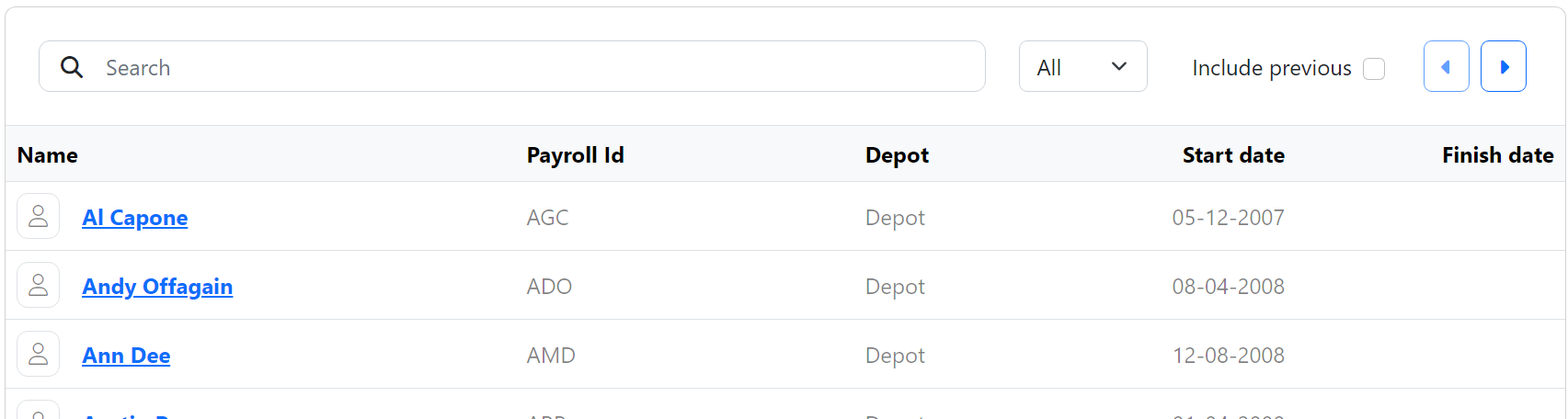
Start typing in the Search input to find the employee wanted. The employee's Name or Payroll Id can be used for searching. The list of employees will reflect the search results found within OpsCentre.
The list of employees can be restricted to individual depots if required.
Employees that have already been terminated may be found using the Include previous check box.
Use the previous and next arrow buttons to see more results.
Click/tap on an employee's name to access their details.
Setting an employee's details
Name
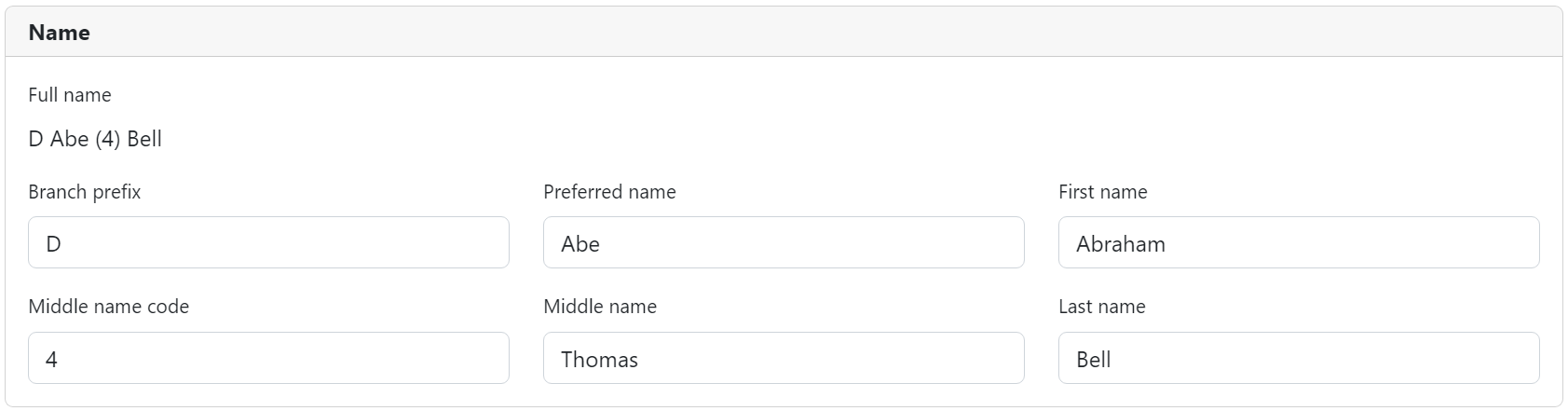
This is area is used to build the employee's name within OpsCentre. The fields available are as follows:
Branch prefix(Sometimes used to identify which depot an employee belongs to)Preferred name(Will be used instead ofFirst nameif set)First name-required-Middle name code(Sometimes used to add license details)Middle name(Useful to distinguish different employees with the same first and last names. Will have no effect ifPreferred nameis used)Last name-required-
The full name will be generated as follows:
Branch prefixPreferred nameorFirst nameif noPreferred nameis set- (
Middle name code) if any - If no
Preferred nameis set then first character ofMiddle name Last name
Branch prefixLast name- (
Middle name code) if any Preferred nameorFirst nameif noPreferred nameis set- If no
Preferred nameis set then first character ofMiddle name
Example
This is an example with a Preferred name field
Branch prefixDPreferred nameAbeFirst nameAbrahamMiddle name code4Middle nameThomasLast nameBell
D Abe (4) Bell
D Bell (4) Abe
Example
This is an example without a Preferred name field
Branch prefixDPreferred nameemptyFirst nameAbrahamMiddle name code4Middle nameThomasLast nameBell
D Abraham (4) T Bell
D Bell (4) Abraham T
Note
Whether the full name comes out as First name -> Last name or Last name -> First name is dependant on how OpsCentre is configured. Please get in touch with us this to have this changed, .
Notes
Any notes written here will be visible to operational staff. These notes can also be viewed and edited in driver training.

Licence
This is area is used to record expiry dates for the employee's licences.
Tip
If an employee should not be allocated to any driving work, then ensure the fields are left empty. This will inform operational staff that they are unlicensed and should not be given any driving work.
Personal contact
These details will be available to operational staff to assist with calling the employee or emailing them their shift card(s).

Work contact
If the employee is also a user of OpsCentre, then add their company email address here. This will be used when sending out emails. It can also be used for them to log into OpsCentre & AdminCentre with their company credentials where this has been configured.

Info
Please get in touch with us to be able to sign into OpsCentre & AdminCentre using company credentials.
Employment
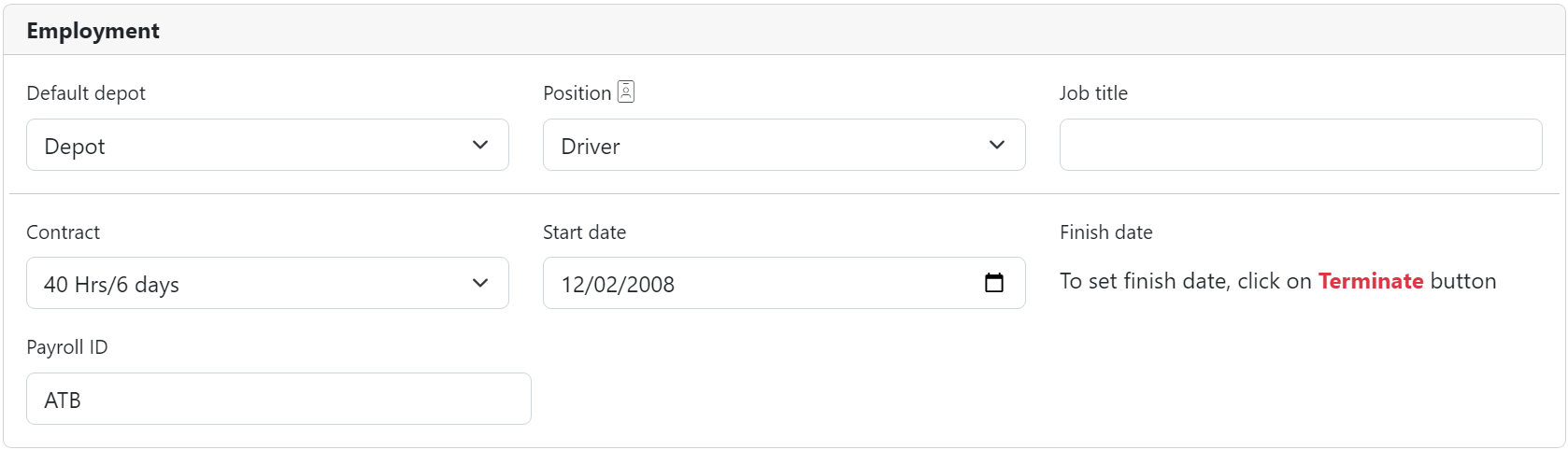
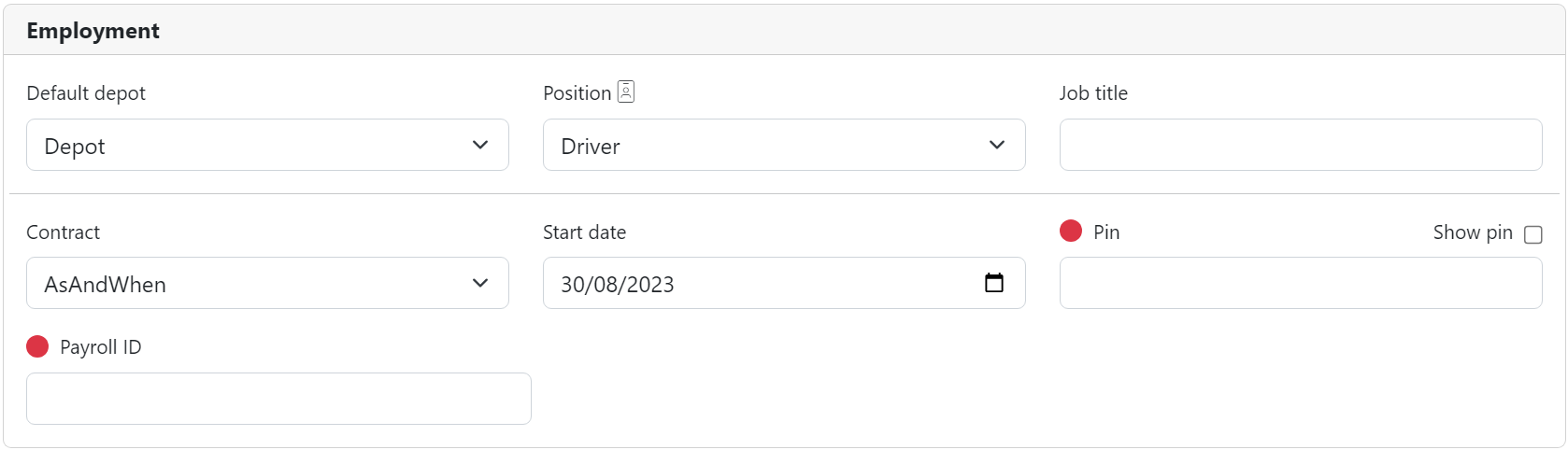
Default depotThe depot the employee predominantly work out of.PositionIf set to something other than Driver the employee will be able to sign into OpsCentre & AdminCentre.Job titleUsed in emails generated within OpsCentre & AdminCentre. Should not be set for drivers.ContractThis is displayed to operational staff so they understand how many hours they should be trying to give an employee per pay period.Start dateThe employee will not be available for allocation to work before this date.Finish dateIf the employee has been terminated, their last day will be displayed here. This will only display for existing employeesPin-required- Used to sign into OpsCentre, AdminCentre & MessageCentre This is only available when adding a new employeePayroll ID-required- Used when exporting paid hours to payroll. These must be unique (even to terminated employees).
Tip
Make sure to click/tap the "Save" button to save any changes 👍🏽
PIN management
 A
A Pin field is provided when adding a new employee. For existing employees, use the Reset PIN button.
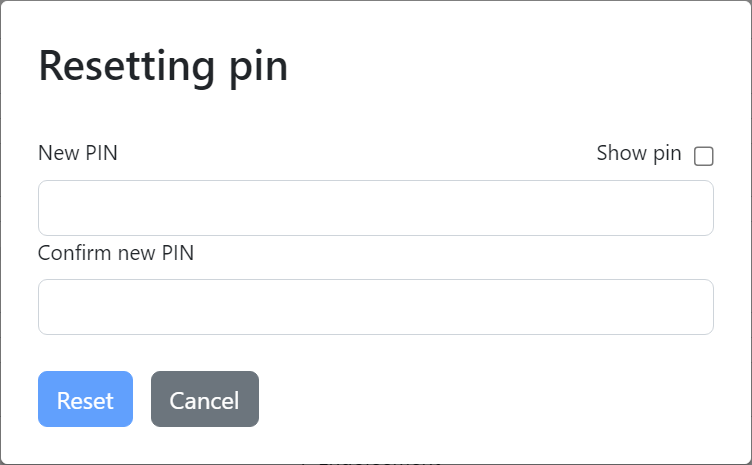
Finishing employees
Terminating
 To terminate an employee, click/tap the
 Terminate button then set the employee's last day at work.
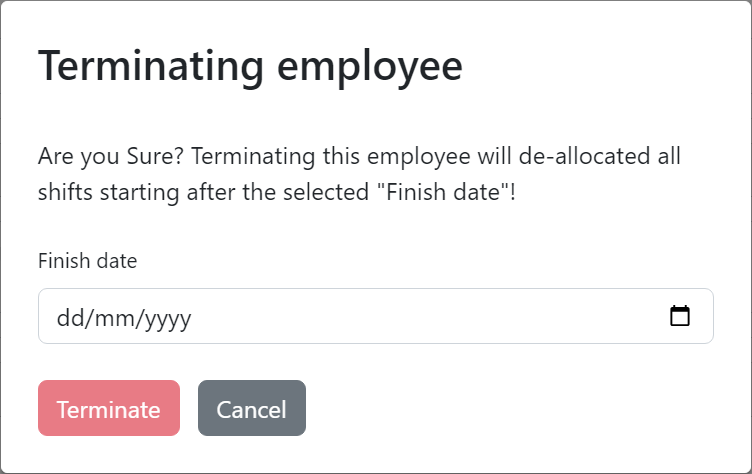
Warning
When setting a finish date in the past, ensure the employee has no work allocated after the selected date and before the current date or this process will fail.
Reinstating
 To reinstate a terminated employee (or cancel a future termination), click/tap the
 Reinstate button.